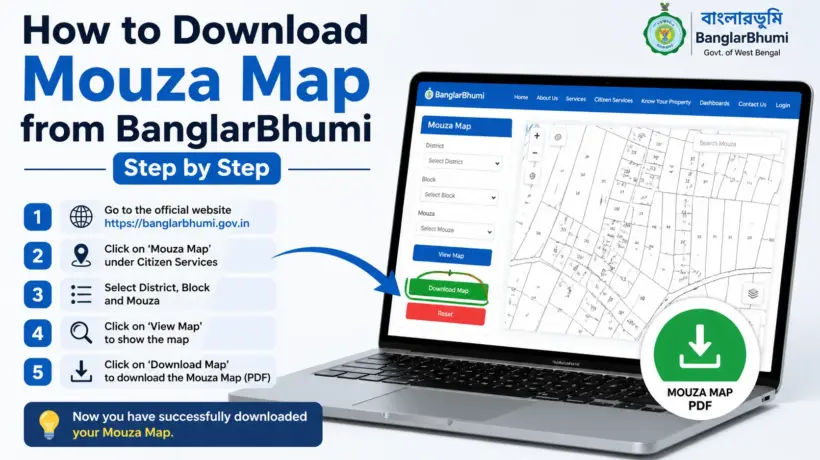
You’ve already applied for the Mouza Map on BanglarBhumi and paid the ₹150 fee. Now you need to actually download it. But there’s no automatic download that happens right after payment — and this confuses a lot of people.
The map goes for processing first. Once the BLLRO office processes your request, it becomes available for download. This guide explains exactly how to download your Mouza Map — using GRN number, Application Number, or the Reprint option. We also cover what errors mean and what to do if the download isn’t showing up.
Two Things You Must Have to Download the Map
After you paid the ₹150 fee, the portal gave you two numbers. You need both to download the map:
Application Number
This is the unique ID for your specific Mouza Map request. It was shown on screen right after you submitted the form — before payment. It’s also printed on the payment receipt. If you didn’t note it down, check your receipt PDF.
GRN Number
GRN stands for Government Reference Number. This was generated after your payment went through successfully. It confirms your payment was recorded by the government system. Without this, you cannot download the map through GRN Search.
Can’t find either number? Don’t panic — there’s still a way to get your map through the Reprint option. We cover that further below.
Method 1 — Download Using GRN Search (Recommended)
This is the most direct method. Once your map is processed and ready, this is how you get it:
Log in to BanglarBhumi. Go to banglarbhumi.gov.in and sign in with your registered mobile number and password.
Go to GRN Search. Click on Citizen Services in the top menu and select GRN Search (also shown as “Application/GRN Search” on some versions of the portal).
Select the Request Type. From the dropdown, choose RoR / Plot Info / Plot Map. This is the category that covers Mouza Map requests.
Enter your Application Number and GRN Number. Type both numbers carefully. One wrong digit and you’ll get a “not found” error.
Solve the captcha and click Submit.
Download the map. If your map is ready, a Download PDF button will appear on screen. Click it — your Mouza Map will download as a PDF file. Save it somewhere safe and keep a printed copy too.
Method 2 — Download Using Application Receipt / Reprint
This is the second way to get your map — useful if you’ve lost your GRN number or want a second download of something you already got before.
Log in to BanglarBhumi.
Go to Service Delivery. Click Citizen Services → Service Delivery → Application Receipt / Reprint.
Select the Request Type. Choose Plot Map or Mouza Map from the dropdown list.
Enter your Application Number and solve the captcha.
Click Next. If the map is ready, it will open as a PDF. Download and save it.
This method only needs the Application Number — so it’s handy if you have that but not the GRN. Both methods lead to the same end result — the same certified Mouza Map PDF.
What the Downloaded Mouza Map Actually Contains
Good to know what you’re getting before you download. The Mouza Map PDF from BanglarBhumi contains:
The LR Map shows current plot numbers (Hal Dag). The RS Map shows old plot numbers (Sabek Dag) from the 1962 Revisional Survey. Make sure you downloaded the right type for your purpose.
Errors You Might See — And What They Mean
BanglarBhumi is not always the friendliest portal when it comes to error messages. Here’s a translation of the most common ones:
| Error Message | What it Actually Means | What to Do |
|---|---|---|
| “Record not found” | Your map hasn’t been processed yet by the BLLRO office. Very common — don’t panic. | Wait 24–48 hours and try again. If it’s been 5+ days, check the troubleshooting section below. |
| “Invalid application number / GRN” | You’ve typed the number wrong, or selected the wrong Request Type in the dropdown. | Re-check the numbers from your receipt. Make sure Request Type is set to “RoR / Plot Info / Plot Map” — not Mutation or Conversion. |
| “Digitally signed copy not yet generated” | Same as record not found — BLLRO office hasn’t generated the map yet. | Wait and retry. This is normal, especially for areas where digitization is still catching up. |
| Page loads but no download button | Your details matched but the file isn’t ready yet. | Check back in 24 hours. The download button appears once the map is generated. |
| Captcha not loading / page not responding | Portal load issue — common during peak hours (10 AM to 1 PM). | Refresh the page or try a different browser. Try again early morning or after 9 PM. |
What to Do If the Map Still Isn’t Available After Several Days
If it’s been more than 5 to 7 days after payment and the map still shows no download option, here’s what to do — step by step:
First confirm the payment actually went through. Go to GRN Search, enter your numbers, and check if payment status shows as successful. If payment is showing as “failed” or “pending”, the request was never processed — you’ll need to reapply.
Check if the map is available for your Mouza. Some Mouzas haven’t been fully digitized yet. Go to Citizen Services → Service Delivery → Mouza Map Request, select your Mouza and map type, and click View Mouza Map. If no preview loads, the map hasn’t been digitized and isn’t available online yet — no amount of waiting will help in this case.
File a Public Grievance on BanglarBhumi. Go to Public Grievance → Grievance Application. Mention your Application Number, GRN, payment date, and that the map hasn’t been made available even after the standard processing time. This creates an official record and usually speeds things up.
Visit your nearest BLLRO office. Take your payment receipt, Application Number, and GRN. The Block Land & Land Reforms Officer can check the status of your application directly and either process it or tell you why it’s stuck.
Can You Download the Same Map Again?
Yes. Once your Mouza Map is processed and available, you can download it as many times as you want using Method 1 (GRN Search) or Method 2 (Reprint). You don’t have to pay again for another copy of the same map.
So if you downloaded it once and accidentally deleted the file — just log in and go through the same GRN Search or Reprint steps. The map will be there as long as your account is active.
Video Tutorial
How to Save and Use the Downloaded Mouza Map
A few practical tips once you have the PDF: