Independent guide website. banglaarbhumi.in is NOT affiliated with the Government of West Bengal. For official services visit banglarbhumi.gov.in. Full disclaimer →
West Bengal Land Records — Free Guide in Simple English

BanglarBhumi Land Records —
Khatian, Plot, Mutation & e-Porcha Explained Simply

BanglarBhumi is confusing for most people — and that's okay. This guide walks you through everything in plain English. How to check your Khatian, find your plot details, apply for mutation, download e-Porcha, and a lot more. No jargon. No confusion.

⚠️ This is a guide website — not the official government portal. For actual land record services, go directly to banglarbhumi.gov.in

What you'll find in this guide
How to search Khatian and Plot number
How to apply for Mutation
How to download e-Porcha (RoR)
How to get a Mouza Map
How to pay Khajna (land tax) online
What RS and LR records mean
How Land Conversion works
How to file a Public Grievance
Free Stamp Duty Calculator for WB
Bengal Stamp Duty Calculator
2 Crore+
Land Records in WB
341
CD Blocks Covered
42,000+
Mouzas in the System
23
Districts of West Bengal
24/7
Online Access
Let's start from the beginning

What is BanglarBhumi?

BanglarBhumi is the official land records website of West Bengal. The full address is banglarbhumi.gov.in. It was started by the West Bengal government back in 2010, and honestly, it changed a lot of things for the better.

Before this website existed, if you needed any information about your land — like who officially owns it, what the plot number is, or whether your name is in the records — you had to physically go to the Block Land Records Office. That usually meant taking a day off work, travelling, standing in a long queue, and sometimes going back again because the work wasn't done. It was a real headache.

Now you can do most of it from your phone. Check your Khatian, see plot details, track your mutation application, download your e-Porcha, pay Khajna online — all of it sitting at home. That's what BanglarBhumi is — a digital system that brings West Bengal's land records to your fingertips.

Quick note about this website: banglaarbhumi.in (what you're reading right now) is an independent guide — we're not the government. The real portal is banglarbhumi.gov.in with a .gov.in address. We just explain how to use it.
Khatian searchRS-LR mappinge-Porcha downloadMutation statusMouza mapsKhajna paymentLand conversionGRN trackingPublic grievanceKnow your property
The basics

BanglarBhumi Portal — Key Details

BanglarBhumi portal quick reference information
Portal name BanglarBhumi
Official website banglarbhumi.gov.in
Who runs it Land & Land Reforms Department, West Bengal
Started by Government of West Bengal
Year started 2010
What it does Khatian, Mutation, e-Porcha, Mouza Map, Khajna, Land Conversion and more
Languages Bengali, English, Hindi
Toll-free help 1800-345-6600 (free to call)
Phone 033-2479-5726
Email dlrswb@gmail.com
Who is this for?

Who Can Use BanglarBhumi?

Anyone can. There's no application process to start using BanglarBhumi, and most of the basic features are completely free. You don't need to be a lawyer or know anything about land records.

People who use it the most include:

Landowners who want to check or update their land records
People buying property who want to verify the seller actually owns the land
Lawyers handling property and inheritance cases
Banks doing background checks before approving home loans
Farmers checking their agricultural land records
NRIs who want to check on ancestral property from abroad
Real estate developers doing land classification checks
1
Without creating an account

You can view basic land details, plot ownership, and Khatian records under Citizen Services — no login needed.

2
After creating an account

You can apply for mutation, download certified e-Porcha, request Mouza maps, pay Khajna, and access everything else.

Getting started

How to Register on BanglarBhumi — Step by Step (2026)

Creating an account is free and takes about 10 minutes. You just need your mobile number and email address ready. Here's exactly what to do:

1
Open the website

Go to banglarbhumi.gov.in in your browser on your phone or computer.

2
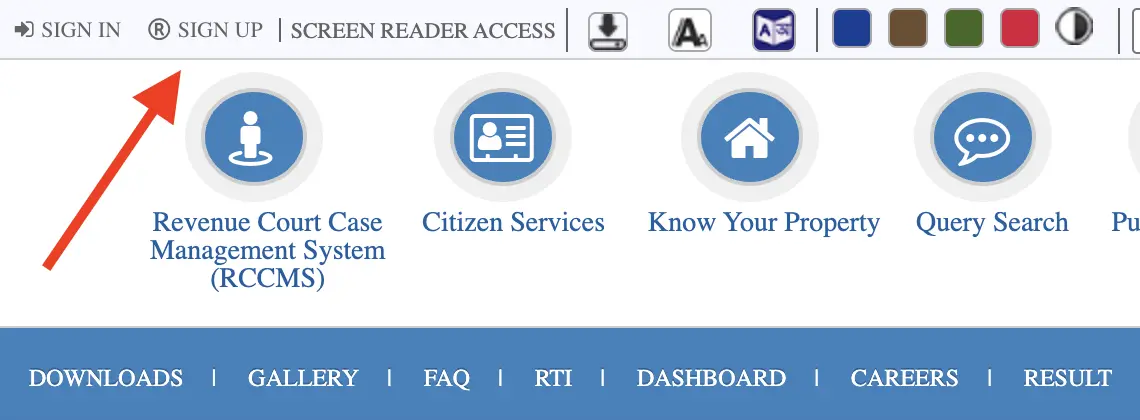
Click Sign Up

Look for "Citizen Registration" or "Sign Up" on the homepage and click it.

BanglarBhumi homepage
3
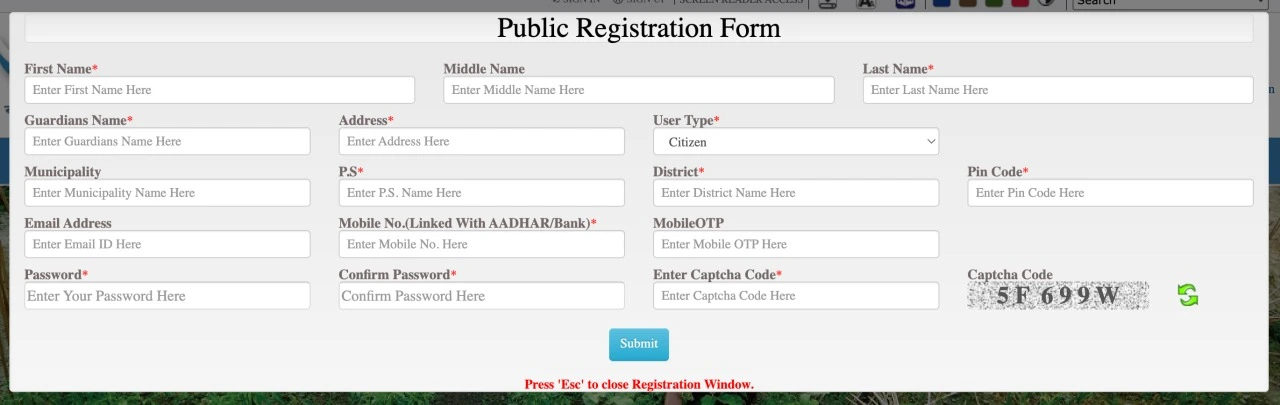
Fill in your details

Enter your full name, your guardian's name, your complete address, email ID, and mobile number. Choose a password and complete the captcha at the bottom.

Sign Up button on BanglarBhumi
4
Verify with OTP

You'll get OTPs on both your mobile and your email. Enter both of them to confirm your identity.

5
Activate your account

There will be an activation link in your email. Click it — your account only becomes fully active after this step.

6
Log in and you're done

Go back to banglarbhumi.gov.in, use your mobile number and password to log in. That's it — you're in!

Important: Make sure you enter the right mobile number during registration. The OTP goes to that number — if it's wrong, you'll be stuck. Also double-check your email spelling before submitting.
Already have an account?

How to Log In to BanglarBhumi Portal

Already registered? Logging in is straightforward. Here's how:

1
Open banglarbhumi.gov.in

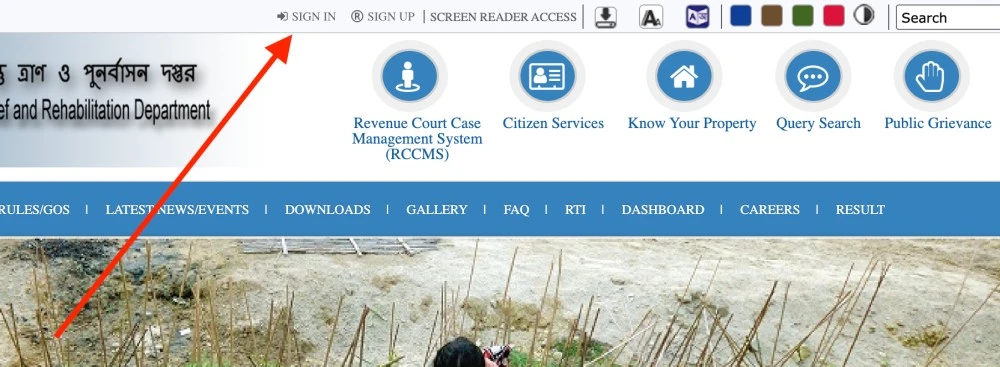
Go to the website and click the "Sign In" button at the top of the homepage.

BanglarBhumi Sign In button
2
Choose your user type

Select "Citizen" if you're a regular user. Government employees should pick "Departmental User".

3
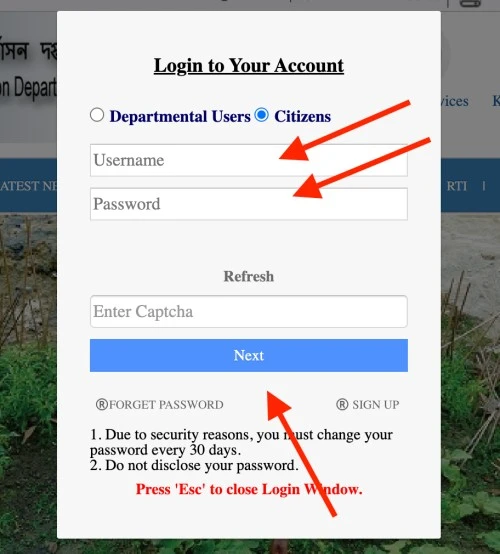
Enter your details

Citizens — enter your registered mobile number and password. Departmental users — enter the User ID and password given by the Land & Land Reforms Department.

BanglarBhumi login form fields
4
Complete the captcha

Type in the captcha code shown on the screen.

5
Click Login

Hit the Login button and you're in. Your dashboard will open where you can access all services.

Forgot your password? Use the "Forgot Password" link on the login page. An OTP will come to your registered mobile and you can set a new password. Never share your password with anyone — not even someone claiming to be from the government. Real government officials never ask for passwords over the phone.
The most important thing to understand

What is Khatian and Plot Number — and How to Check Them on BanglarBhumi

These two terms come up constantly when dealing with land records in West Bengal. Once you understand what they mean, everything else starts making sense.

What is a Khatian?

A Khatian (also called Parcha or Record of Rights) is basically a document that lists all the plots a person owns in a particular Mouza. It shows the owner's name, the plot numbers, total land area, and what type of land it is. Think of it as the main land ownership document in West Bengal — the most important paper you can have for your land.

What is a Dag / Plot Number?

A Dag number (also called Plot Number) is a unique ID given to every single piece of land on the survey map — just like how every house has a door number. Without the correct Dag number, you can't reliably verify or search for any land record. If you're buying land, always double-check the Dag number — this is where most land fraud starts.

How to Check Khatian and Plot Number on BanglarBhumi

Method 1 — Search using "Know Your Property"

1

Log in to BanglarBhumi and click on "Know Your Property".
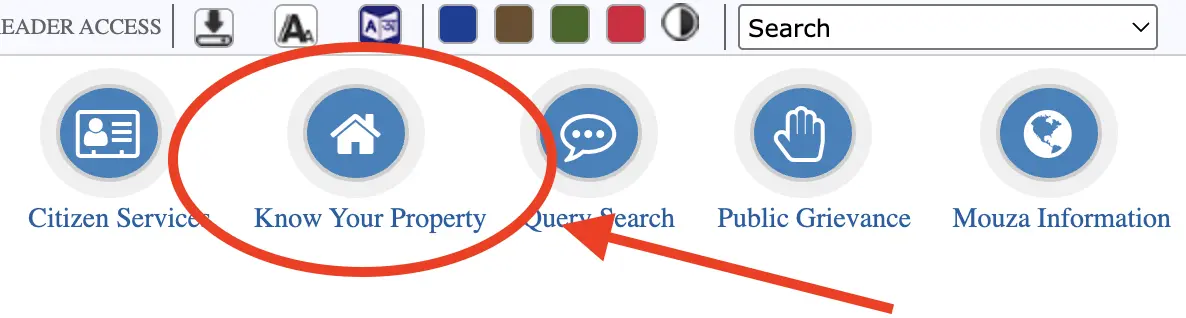
BanglarBhumi login page screenshot
2

Select your District, Block and Mouza from the dropdown menus.
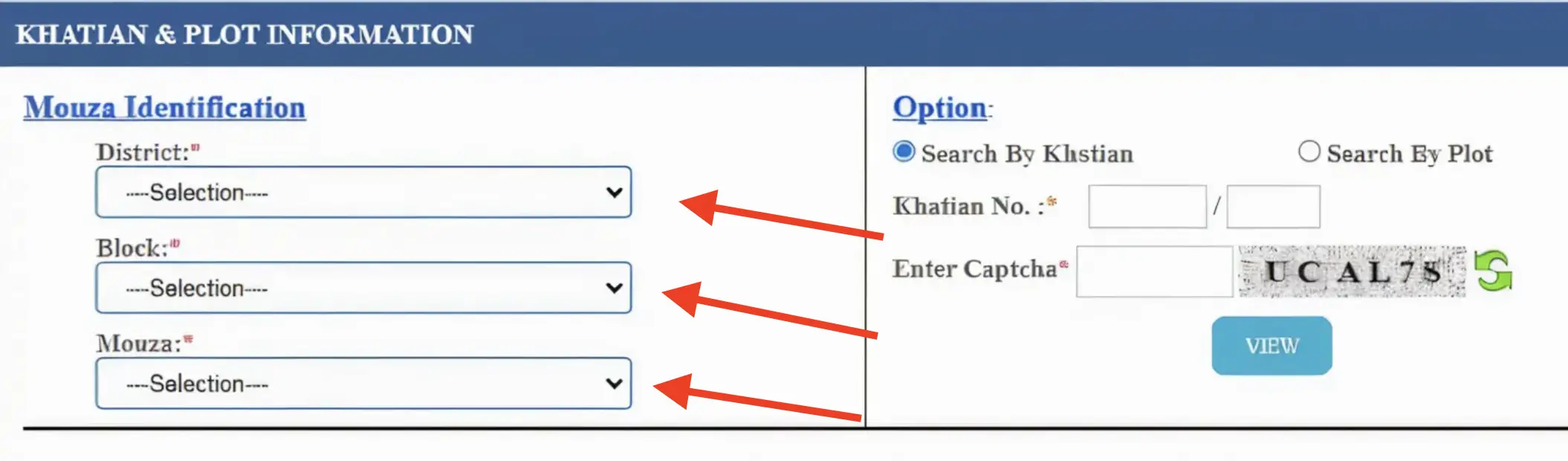
District Block Mouza dropdown screenshot
3

Choose either "Search by Khatian" or "Search by Plot Number" — whichever you have.
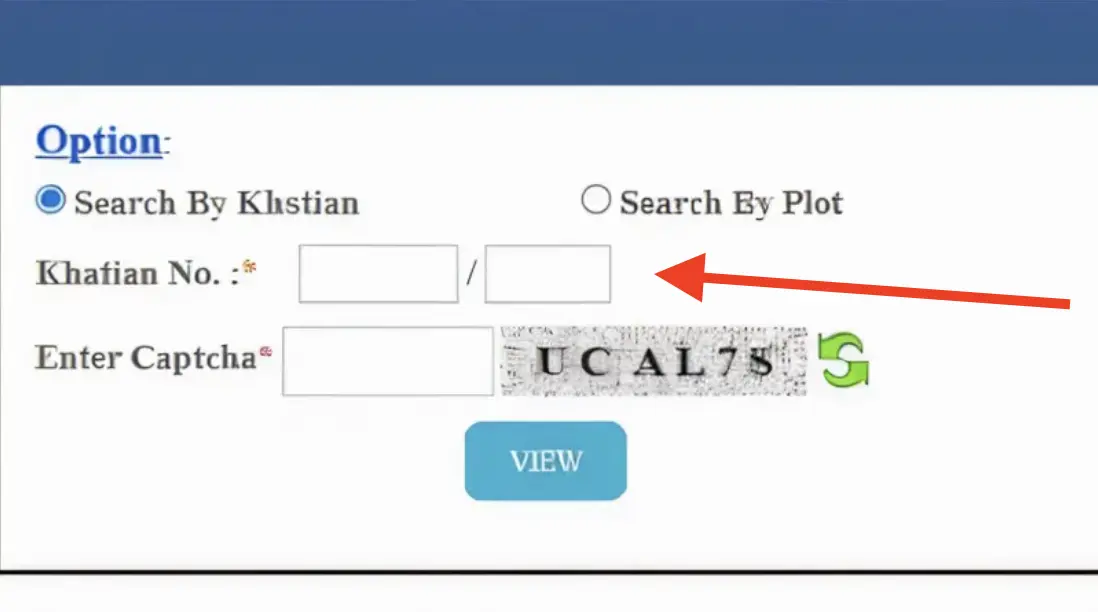
District Block Mouza dropdown screenshot
4

Enter the number and complete the captcha.

5

Click "View" and you'll see the owner's name, land area, and land classification.

Method 2 — Search using "Query Search"

1

Find "Query Search" on the portal and click it.
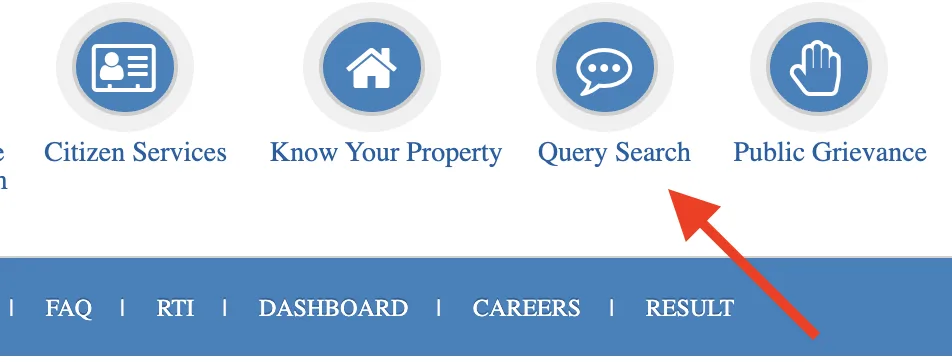
BanglarBhumi login page screenshot
2

Enter your Query Number, Query Year, and captcha.
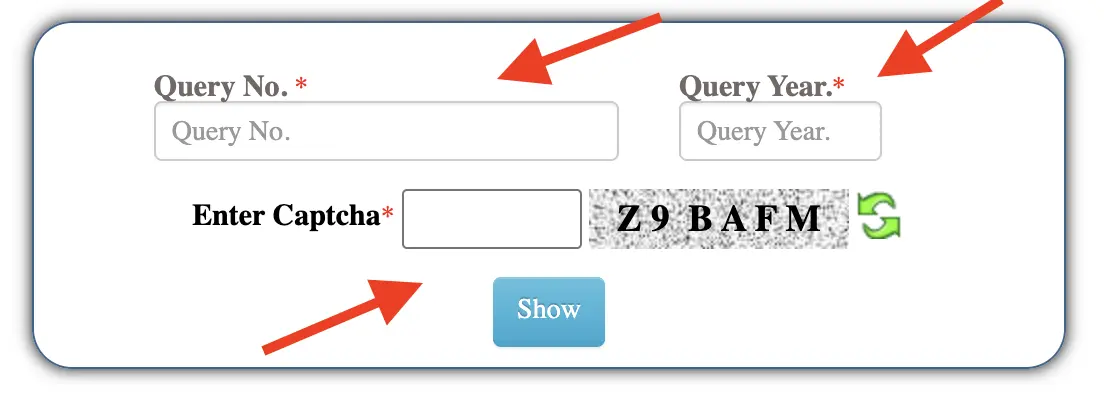
District Block Mouza dropdown screenshot
3

Click "Show" and you'll see the plot details linked to that query number.

Don't have the Khatian or Dag number? You can also search by the owner's name using "Know Your Property". It's really useful when you're checking old ancestral land records or verifying someone else's ownership claim before buying.
Confusing but important

RS and LR Records — What's the Difference and How to Check Them

This one confuses a lot of people. Don't worry — it's actually quite simple once someone explains it properly.

West Bengal land records have two types of survey numbers. When you deal with old land documents, you'll often find that the number written there doesn't match what the BanglarBhumi portal shows. That's because one is an old survey number and the other is the current one.

RS — Revisional Survey (Sabek Dag)

This is the old record. Done many decades ago during the British survey. Also called Sabek Dag. If you have old land documents, the numbers there are probably RS numbers.

LR — Ledger Record (Hal Dag)

This is the current official record. Also called Hal Dag. This is what you see in today's Khatians, mutation records, and government databases. When in doubt, this is the number that matters.

The RS number and LR number for the same plot are often different. BanglarBhumi has a feature where you can convert one to the other — which is incredibly useful when you're dealing with old property documents.

How to Check RS and LR Records in 2026?

1

Log in and go to "Citizen Services".

2

Click on "RS-LR Information".
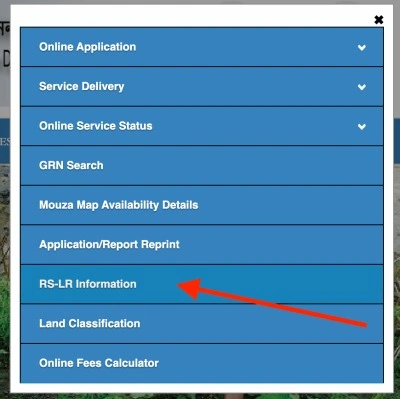
RS LR Information
3

Select your District, Block, and Mouza.
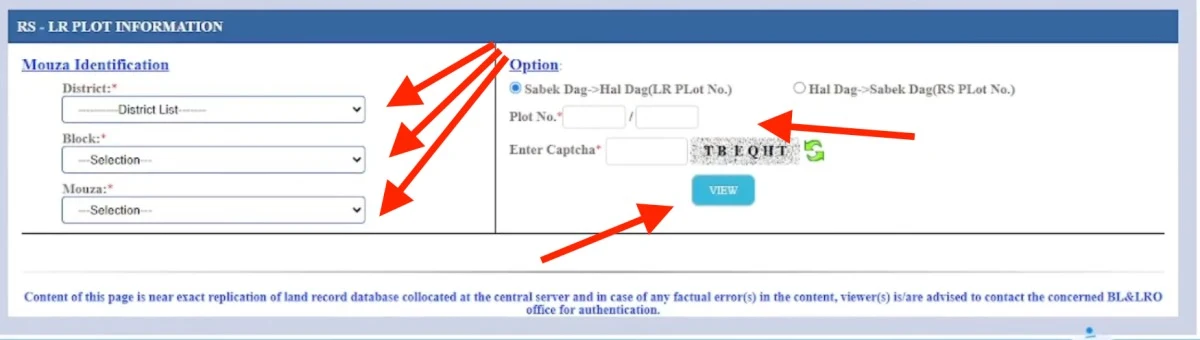
Mouza Identification
4

Choose whether you want to search by RS number (Sabek Dag) or LR number (Hal Dag).
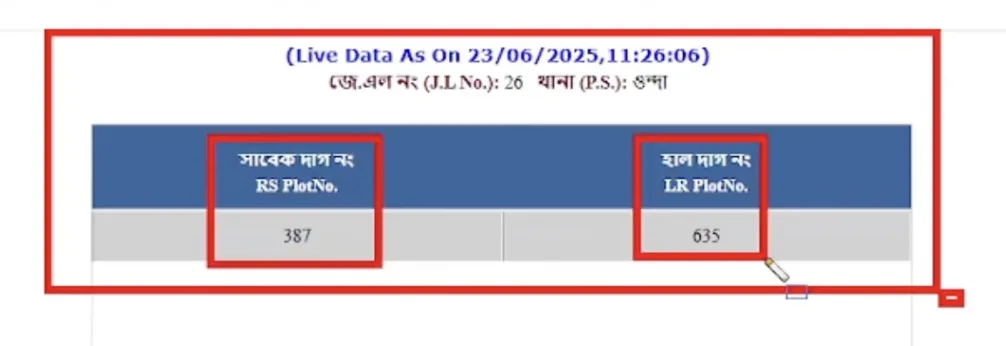
Live Data Plot Information
5

Enter the plot number and complete the captcha.

6

Click "View" — you'll see the matching number, land classification, and ownership details.

Your official ownership document

What is e-Porcha and How to Download It from BanglarBhumi

e-Porcha is the digital version of your Record of Rights (RoR) — basically your official, government-issued proof that you own a piece of land. It's digitally signed, which means banks, courts, and all government offices accept it as a valid legal document.

The best part? You can download it right from BanglarBhumi without visiting any office. Here's how it works:

Apply for a new e-Porcha

1

Log in to BanglarBhumi.

2

Go to "Citizen Services" → "Service Delivery" → "RoR Request".

3

Enter your District, Block, Mouza, and your Khatian or Plot number.

4

Check the details shown carefully — make sure the name and plot are correct.

5

Pay the small fee online for the certified copy.

6

Note down the reference number. Once the BLLRO office approves it, you can download it.

Already applied? Download with GRN

1

Go to "Citizen Services" → "GRN Search".

2

Enter your GRN number and application number.

3

Solve the captcha and click "Submit".

4

If it's ready, a Download button will appear. Click it to get your e-Porcha as a PDF.

Seeing a "RoR not ready" error? That just means the BLLRO office hasn't processed your request yet. Wait 24 to 48 hours and try again. Keep your GRN number safe — that's your only way to track and download the document.
When ownership changes hands

What is Mutation and How to Apply for It on BanglarBhumi

When land changes hands — you bought it, inherited it, received it as a gift — the government records still show the old owner's name. Mutation is the process of updating those records to show your name instead.

A lot of people skip this step and regret it later. Without mutation in your name, you'll have trouble selling the land in future, getting a bank loan against it, or proving ownership in court. So if you've recently acquired land, get the mutation done as soon as possible.

How to apply for mutation at Banglar Bhumi in 2026?

1

Log in and click "Online Application".

2

Select "Mutation Application".
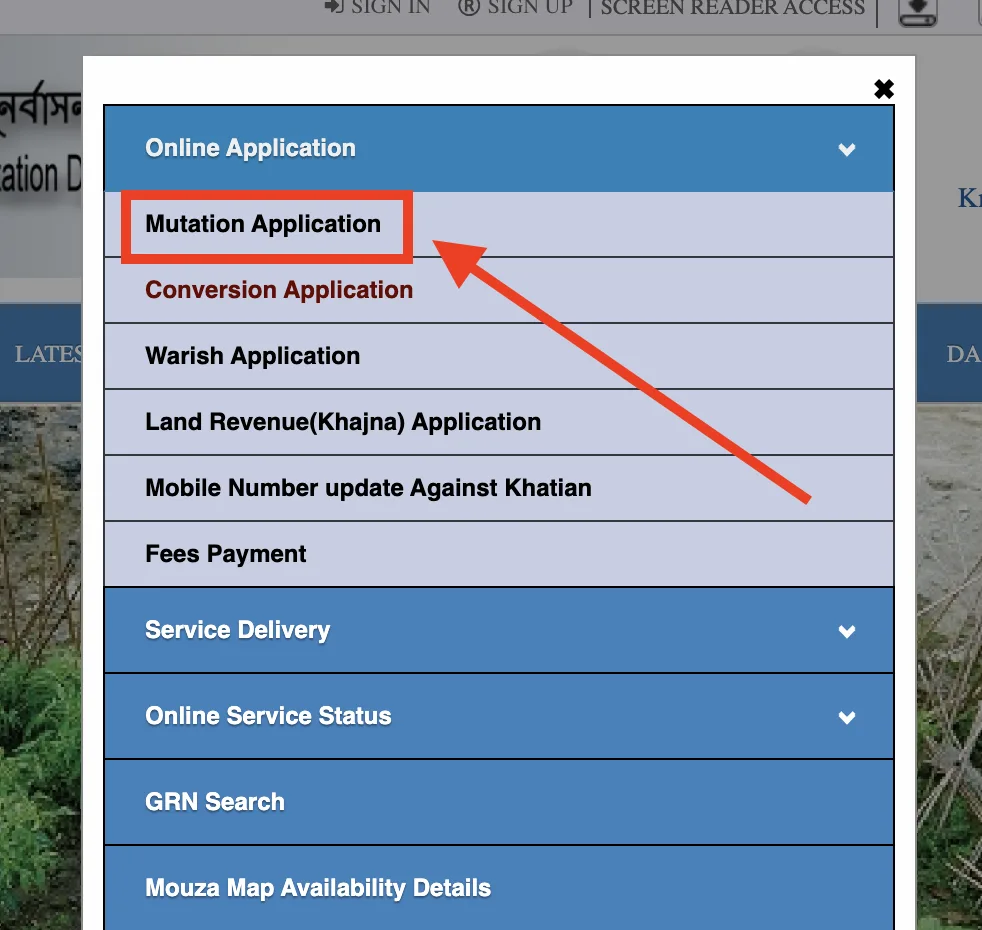
Online Mutation Application
3

Fill in the District, Block, Mouza, Khatian number, and buyer/seller details.
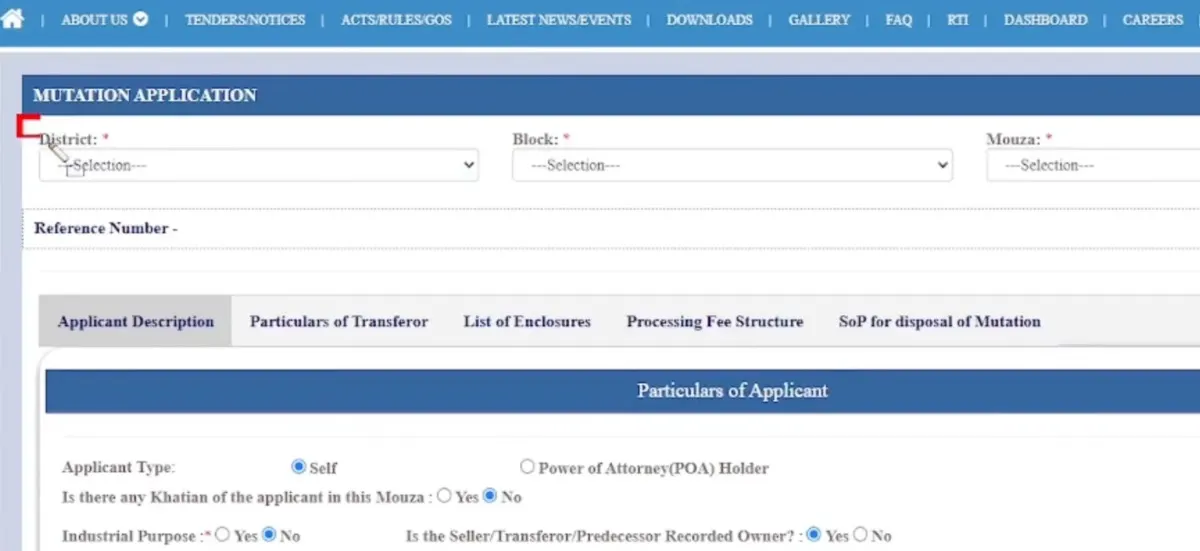
Mutuation Banglar Bhumi Process details
4

Upload your documents — sale deed, inheritance certificate, or whatever proves the transfer.

5

Pay the mutation fee online.

6

Submit. You'll get an acknowledgement slip with a unique application number — save this.

How to check your mutation status

1

Log in and go to "Citizen Services" → "Mutation Status".
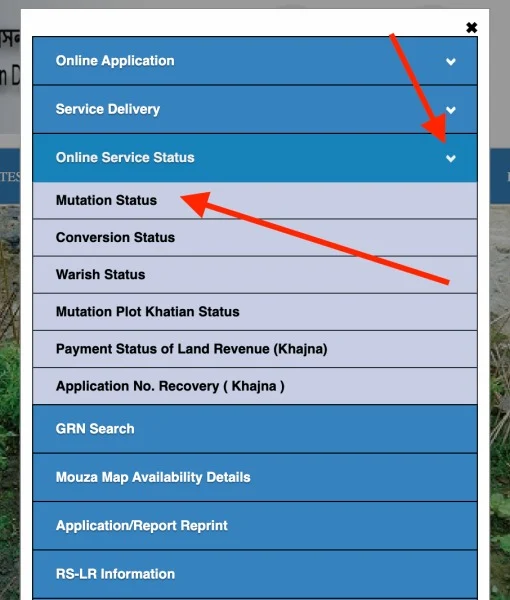
       Mutuation Status West Bengal bhumi
2

Search by case number, deed number, or location — whichever you have.
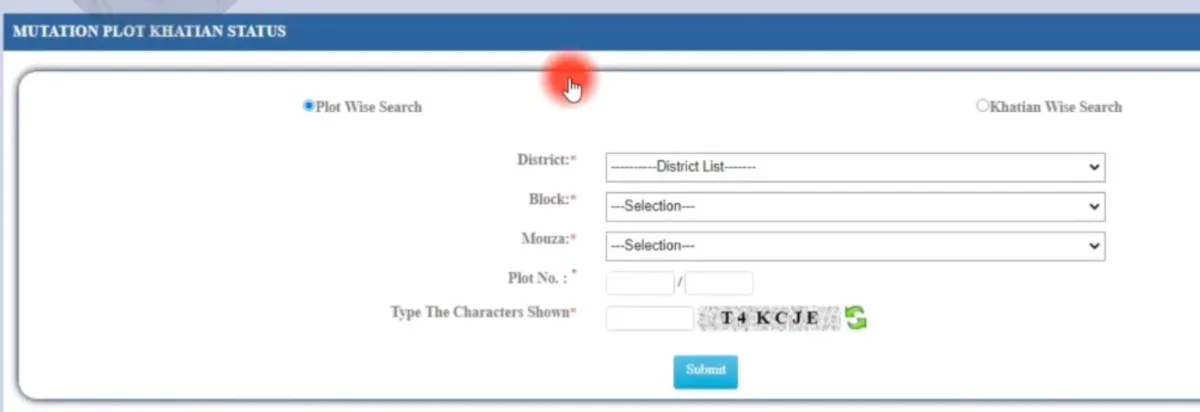
West Bengal Mutuation Status check
3

The current status will show up — whether it's pending, under review, or approved.

Finding your land boundaries

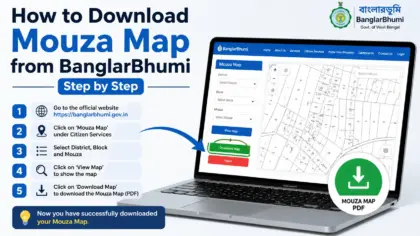
How to Get a Mouza Map from BanglarBhumi

A Mouza Map is an official government map that shows the exact boundaries of your land — where it starts, where it ends, which plots are next to it, and what the classification is. It's really helpful when there's a boundary dispute with a neighbour, when you're planning construction, or when you just want to confirm the land is exactly where the seller said it is.

1

Log in to BanglarBhumi.

2

Go to "Citizen Services" → "Service Delivery" → "Mouza Map Request".

3

Select your District, Block, and Mouza. Choose the map type — LR or RS.

4

Enter the sheet number or plot number if it asks for one.

5

Pay the applicable fee through the online payment gateway.

6

Once it's processed, you can download the map showing your plot's exact boundaries.

Annual land tax

How to Pay Khajna (Land Tax) Online on BanglarBhumi?

Khajna is the annual land revenue tax that every landowner in West Bengal has to pay. It used to mean a trip to the government office and standing in a queue. Now it takes about 5 minutes online — and you get a receipt instantly.

1

Log in to your BanglarBhumi account.

2

Go to Citizen Services → Online Application → Land Revenue (Khajna) Application.
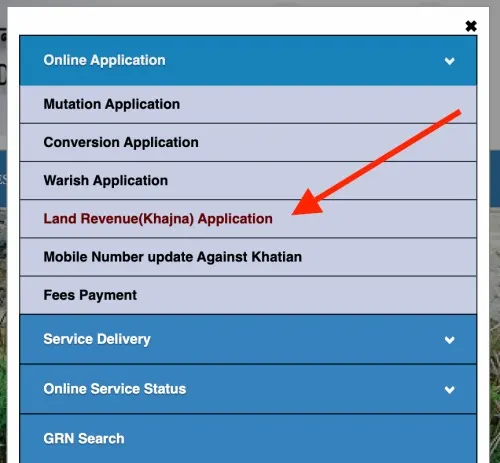
       Land Khajana Revenue process
3

Enter your land details (District, Mouza, Khatian, Plot) and submit.

4

Note down the Application Number generated.

5

Now go to Citizen Services → Online Application → Fees Payment

6

Select Khajna and enter your Application Number + captcha

7

Click “View” to see the payable amount.

8

Complete the payment via UPI, Net Banking or Card.

9

Download your receipt.

Don't forget to download the receipt right after payment. If something goes wrong later, you'll need the GRN number from that receipt to verify the payment went through.
Changing how your land is classified

Land Classification and Conversion on BanglarBhumi — How It Works

Every plot in West Bengal has an official classification — agricultural, residential, commercial, etc. This classification determines what you can legally do with the land. If you want to build a house on agricultural land, you have to go through a conversion process first. Skipping it can make your construction legally problematic.

First — check your land's current classification

1

Go to "Citizen Services" on the portal.

2

Select "Land Classification".

3

Choose your District, Block, and Mouza, then enter your plot or Khatian number.

4

You'll see the official land code and classification — agricultural, residential, or something else.

Documents you'll need for conversion

Conversion application form — available to download on BanglarBhumi
Ownership proof — sale deed or mutation certificate in your name
Latest Khajna receipt — shows your tax payments are up to date
Plot or layout map — to show current land boundaries
NOC (No Objection Certificate) — if the local authority requires one

How to apply for conversion?

1

Log in and go to "Online Application" → "Conversion Application".

2

Enter your District, Mouza, Khatian, and Plot number.

3

Upload all the required documents.

4

Pay the conversion fee online and submit the application.

5

Note your acknowledgement number — use it to track the application later.

Tracking your payments

What is GRN Search on BanglarBhumi and How to Use It

Every time you pay a fee on BanglarBhumi — for mutation, e-Porcha, Khajna, or anything else — the system gives you a GRN number. GRN stands for Government Reference Number. Think of it as your payment receipt number. It's how you track everything that happens after you pay.

What GRN Search tells you

It confirms whether your payment was recorded successfully. It shows the current status of your application. And when your document — like e-Porcha — is ready, you can download it directly through GRN Search.

When should you use it?

After every payment on BanglarBhumi. If payment went through but you got no confirmation, GRN Search will show you what happened. Also use it to check if your e-Porcha or Mouza map is ready for download.

1

Go to "Citizen Services" → "GRN Search".

2

Enter your GRN number and application number.

3

Solve the captcha and click "Submit".

4

You'll see the payment status and application status. If your document is ready, a Download button will appear.

Save your GRN number the moment you get it. Take a screenshot or write it down. If you lose it, you'll have to contact your local Sub-Registrar or BLLRO office with your application number to get it back.
When something's wrong in your records

How to File a Grievance on BanglarBhumi

What if your land record shows the wrong owner? Or the area is listed incorrectly? Or there's a boundary dispute with a neighbour? You can file a formal complaint directly on BanglarBhumi — no office visit needed.

Filing a complaint

1

Go to "Public Grievance" → "Grievance Application".

2

Select your District, Block, and Mouza.

3

Fill in the petition type — what exactly is wrong (record correction, mutation issue, etc.).

4

Enter your personal details and the plot details.

5

Upload supporting documents in PDF format (max 2 MB).

6

Solve the captcha, click Submit, and write down the UPN (Unique Petition Number) you get.

Tracking your complaint

1

Go to "Public Grievance" → "Grievance Status/Description".

2

Enter your UPN number and captcha.

3

Click "Show" — your complaint status will appear.

Lost your form or receipt?

How to Reprint an Application or Receipt on BanglarBhumi

It happens — you submitted an application, needed the form or receipt again, and now you can't find it. No need to submit a new application. BanglarBhumi lets you reprint any form or receipt you've already submitted. Works for mutations, conversions, certified copies, plot info, and map requests.

1

Log in to BanglarBhumi.

2

Go to "Online Application" → "Reprint Application/Receipt".

3

Select the application type — Conversion, Mutation, Certified Copy, Plot Information, or Plot Map.

4

Enter your application number and complete the captcha.

5

Click "Next" — your original form or receipt will appear on screen.

6

Download it as a PDF or print it directly.

Always keep your application number saved somewhere — it's what you need to reprint. Nothing else works without it.
Everything in one place

All BanglarBhumi Services — Simply Explained

Step-by-step guides for every service on the official West Bengal land records portal

Khatian & Plot Search

Check owner name, land area, and classification using Khatian or Dag number.

Read the guide →

e-Porcha / RoR Certificate

Download a digitally signed ownership certificate — valid at banks and courts.

Read the guide →

RS-LR Plot Information

Convert old Sabek Dag numbers to current Hal Dag numbers for any plot.

Read the guide →

Mutation Application

Update ownership records after buying, inheriting, or receiving land as a gift.

Read the guide →

Mouza Map

Download an official map showing exact boundaries of your land plot.

Read the guide →

Khajna Payment

Pay your annual land tax online. Takes 5 minutes, receipt comes instantly.

Read the guide →

Know Your Property

Check the official government valuation of any land — for buying, selling, or tax.

Read the guide →

Public Grievance

Found an error in your records? File a complaint and track it online.

Read the guide →
The complete process

How to Apply on BanglarBhumi and Get Your RoR Certificate — 10 Steps

Follow these in order and you'll have your Record of Rights certificate ready at home

1

Open the website

Go to banglarbhumi.gov.in on your phone or computer.

2

Create an account

Click "Citizen Registration" and sign up — it's free.

3

Fill your details

Enter your name, address, email, mobile number, and password.

4

Verify your identity

Enter the OTPs that come to your mobile and email.

5

Activate the account

Click the activation link in your email to fully activate it.

6

Log in

Sign in with your mobile number and password.

7

Enter property details

Fill in your land details and upload the required documents.

8

Get acknowledgement

After submitting, save your application number carefully.

9

Wait for verification

Government officers will check your documents and land details.

10

Download your RoR

Once approved, your Record of Rights certificate is ready to download!

Why it actually matters

What BanglarBhumi Has Changed for Ordinary People

Access from anywhere, anytime

Sitting at home, in a village, or abroad — you can check land records at midnight if you want. No office hours, no travel.

No more middlemen

Earlier, unofficial agents would charge money just to get basic information. Now you get it directly and for free.

Catch land fraud before it happens

Anyone can verify ownership before buying. A 2-minute check on BanglarBhumi can save you from losing lakhs to a fraudulent sale.

Fewer property disputes

When everyone can see the official records, boundary fights and ownership claims get resolved with actual evidence.

Saves real time and money

Pay Khajna online, apply for mutation at home, download e-Porcha without stepping out. That's entire days of effort saved.

Records that can't be tampered with

Digital, timestamped, and publicly visible. It's much harder to manipulate land records when anyone can look them up.

Works in three languages

Bengali, English, and Hindi — so people from all parts of West Bengal can actually use it comfortably.

Track everything in real time

After submitting anything — mutation, e-Porcha, conversion — track it live using your GRN or UPN number from home.

Before you start

Things You Should Know Before Using BanglarBhumi

Pick the right time

The portal gets really slow between 10 AM and 12 PM on weekdays — especially near government deadlines. Try early morning (before 9 AM) or late at night. Genuinely makes a big difference.

Keep your numbers ready

Before you log in, have your Khatian number, Dag number, and district/block/mouza details at hand. Looking them up mid-session wastes a lot of time.

Download the receipt immediately

Right after any payment, download the GRN receipt. Don't close the tab and think you'll do it later. That receipt number is your only way to track the application.

Use Chrome or Firefox

If the captcha doesn't load or a page freezes, clear your browser cache or switch to Chrome or Firefox. Older browsers don't handle the portal well.

Only ever use the official portal

For anything related to your actual land records, always go to banglarbhumi.gov.in directly. Don't enter your personal details in any third-party app.

Your password is private — keep it that way

No government officer will ever call or email asking for your BanglarBhumi password. If someone does, it's a scam. Use Forgot Password to reset if needed.

Need help?

BanglarBhumi — Official Contact Details

For any actual land record issue, contact the West Bengal government directly using these details

Common questions

BanglarBhumi — Questions People Ask All the Time

Go to banglarbhumi.gov.in. Under Citizen Services, select your district, block, and mouza. Then enter your Khatian number or Dag (plot) number. For basic searches you don't even need to create an account.
A Khatian is a list of all plots a person owns in a particular mouza — think of it like an account. A Dag number is the unique ID of one single piece of land — like one item inside that account. One person can have one Khatian with multiple Dag numbers inside it.
Yes. The "Know Your Property" section lets you search by owner name. It's really useful when you don't have the Khatian or Dag number but want to verify someone's ownership.
e-Porcha is a digitally signed copy of your Record of Rights — the official proof that you own a piece of land. Banks accept it for home loans, courts accept it as evidence, and government offices accept it for official purposes. You can download it directly from BanglarBhumi.
Basic services like searching Khatian and plot details are free. Some services like getting a certified e-Porcha copy, requesting a Mouza map, or filing a mutation application have a small fee that you pay online.
RS (Revisional Survey) is the old record — also called Sabek Dag. LR (Ledger Record) is the current record — also called Hal Dag. They're often different numbers for the same plot. BanglarBhumi lets you convert between them, which is really helpful when dealing with old land documents.
Log in and go to Citizen Services → Mutation Status. You can search by case number, deed number, or location to see exactly what stage your application is at.
GRN stands for Government Reference Number. After you pay for any service on BanglarBhumi, you get a GRN. It's your payment receipt and tracking code. Keep it safe — you need it to check application status and download processed documents.
Log in, go to Citizen Services → Online Application → Fees Payment. Select Khajna, view your dues, and pay using net banking or the GRIPS payment gateway. Download the receipt right after paying.
Call the toll-free helpline at 1800-345-6600 (free). Or dial 033-2479-5726. You can also email dlrswb@gmail.com. The office is at 35 Survey Building, Gopal Nagar Road, Kolkata – 700027.
From the blog

More Guides to Help You Out