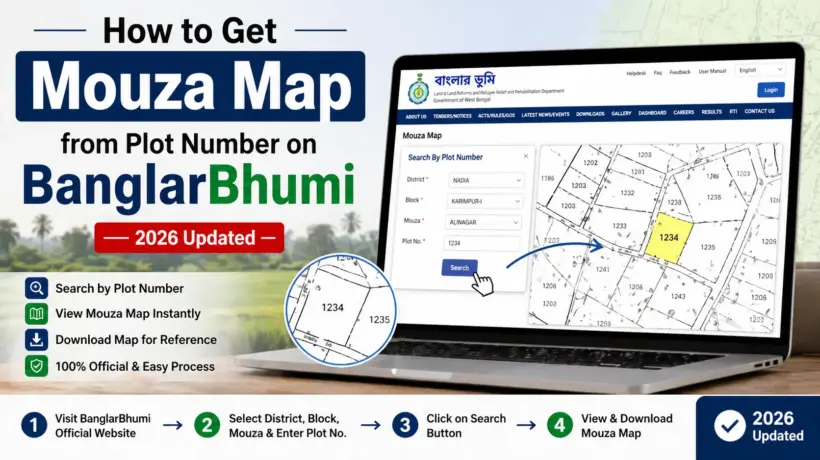
You have a plot number. You want to see the actual map of your land — where exactly it sits, what its boundaries are, which plots are next to it. Makes total sense.
A lot of people don’t even know this is possible online. Earlier, getting a Mouza Map meant going to the land records office, filling forms, waiting days, and hoping someone would actually help you. Now, you can request the official Mouza Map from your plot number directly on BanglarBhumi — sitting at home, in about 10 minutes.
This guide explains exactly how to do it — step by step, including the fee, what LR and RS maps are, how to preview the map before paying, and how to download it after approval.
What is a Mouza Map — and Why Would You Need One?
A Mouza is basically a revenue village — the smallest land administrative unit in West Bengal. A Mouza Map is the official cadastral map of that area. It shows every single plot within that Mouza — the exact boundaries, the shape, which plot is where, and how plots connect to each other.
Think of it like a detailed top-view layout of all the land in a particular village, drawn to scale by government surveyors.
Here’s when you’d actually need one:
LR Map vs RS Map — What’s the Difference?
When you request a Mouza Map on BanglarBhumi, you’ll be asked to choose between two types — LR Map or RS Map. A lot of people get confused here. Let me explain simply.
LR Map (Land Record Map)
This is the current map. It reflects the latest land records as they stand today. Plot numbers on this map match the current Khatian and land records. If your land documents are recent, the plot number you have is an LR (Hal Dag) number — so get the LR Map.
RS Map (Revisional Survey Map)
This is the older map from the Revisional Settlement of 1962. Plot numbers here are the old RS (Sabek Dag) numbers. If you have an old deed or old documents with a Sabek Dag number, the RS Map is what you need.
Simple rule — if your documents are recent and your plot number comes from a current Khatian, go with LR Map. If you’re working with old land papers and the plot number is an old Sabek Dag number, pick RS Map. Not sure which one? Check your e-Porcha — it’ll tell you whether the number is an LR or RS plot number.
How Much Does it Cost?
The fee for requesting a Mouza Map on BanglarBhumi is ₹150. Flat fee — doesn’t matter how big or small the land is, doesn’t matter which district you’re in. One request = ₹150.
Important thing to know — each plot number needs a separate request. So if you need maps for two different plots, you pay ₹150 twice. There’s no way to club multiple plots in one payment.
You can pay through net banking, UPI, debit card, credit card, or SBI ePay via the GRIPS payment gateway. The payment goes directly to the government — there are no agent fees or extra charges.
Before You Start — Check If the Map is Available for Your Mouza
Not every Mouza has both LR and RS maps digitized and available on BanglarBhumi yet. Some rural or remote areas are still getting their maps uploaded. So before you go through the whole process, it’s smart to check availability first.
Here’s how to check:
Log in to BanglarBhumi at banglarbhumi.gov.in.
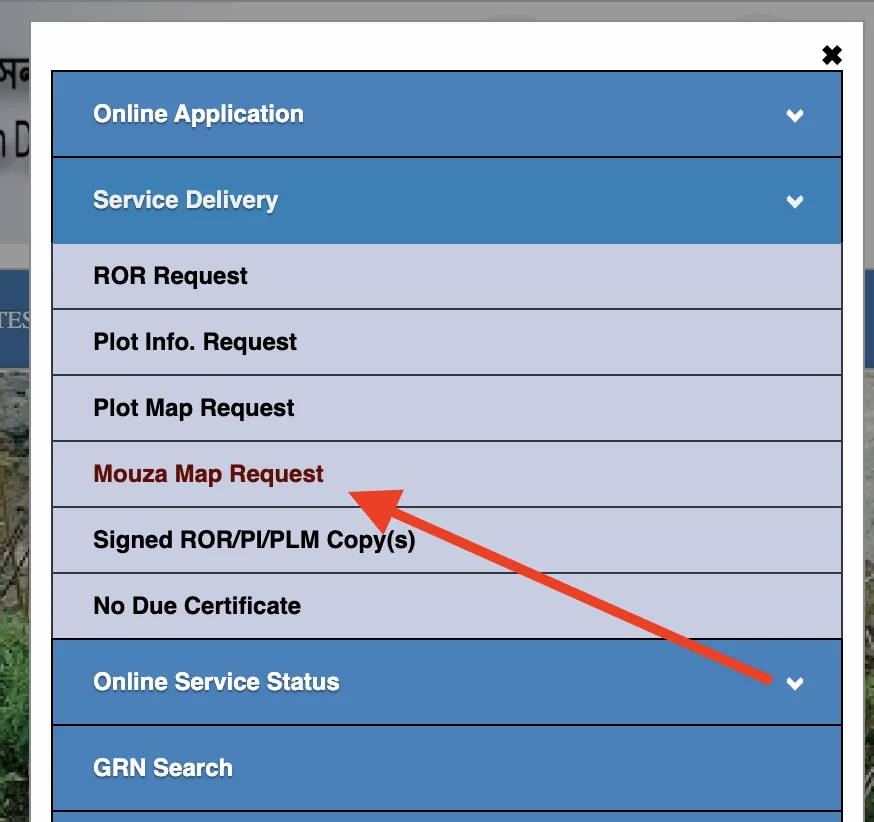
Go to Citizen Services → Service Delivery → Mouza Map Request.
Select your District, Block, and Mouza from the dropdown menus.
Choose the map type — LR Map or RS Map.
Enter the Sheet Number. If you don’t know the sheet number, you can enter your Plot Number instead — the portal will show you the sheet it belongs to.
Click View Mouza Map. If the map is available, a sample preview will open in a new tab. You can see the full map layout and even locate your specific plot by entering the plot number in the preview window. If nothing loads or you get an error, the map isn’t available for that Mouza yet.
How to Request Mouza Map from Plot Number on BanglarBhumi — Full Steps
Okay, you’ve confirmed the map is available. Now let’s actually request and download it. Here’s the full process:
Log in to BanglarBhumi. Go to banglarbhumi.gov.in and sign in with your mobile number and password. You need a registered account to request maps — basic viewing is free but the official certified map requires login and payment.
Go to Mouza Map Request. Click Citizen Services in the top menu → Service Delivery → Mouza Map Request from the dropdown.
Select District, Block, and Mouza. Use the dropdown menus to select these three things carefully. If you select the wrong Mouza, you’ll get the wrong map — and the fee is non-refundable.
Choose LR Map or RS Map. Pick based on what type of plot number you have (explained in the section above). Then enter the Sheet Number. If you’re unsure of the sheet number, enter your Plot Number — the system will find the sheet automatically.
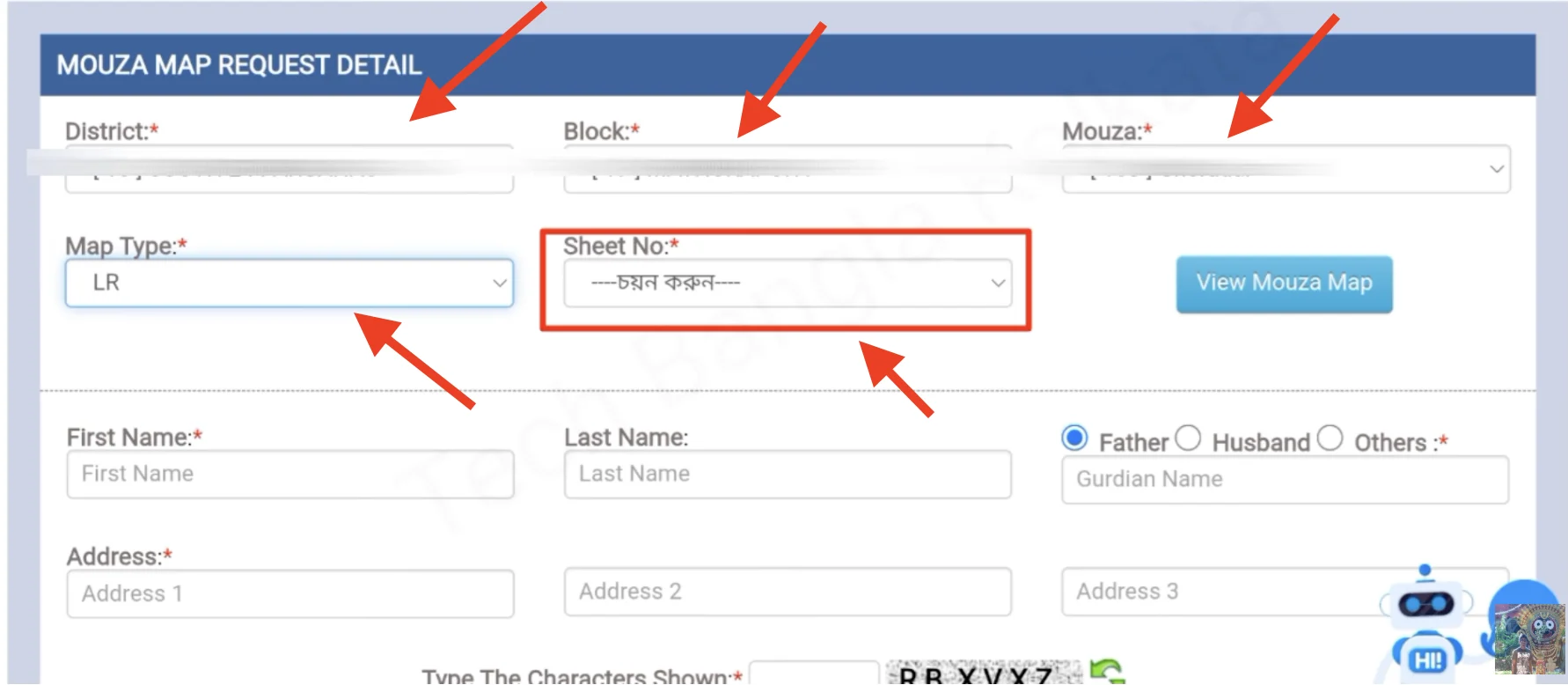
Preview the map first. Click View Mouza Map. The map preview opens in a new tab. You can zoom in, see all plots in the Mouza, and enter your plot number in the search box to locate your specific plot. Do this step properly — confirm your plot is visible and the map covers what you need before moving on.
Close the preview tab and come back. After reviewing the preview, close that tab. You’ll be back on the request form. Now scroll down to fill in your personal details.
Fill in your personal details. Enter your first name, last name, guardian’s name (father’s or husband’s name), and your full address. These go on the official map certificate.
Solve the captcha and submit. Complete the captcha verification and click Submit.
Pay ₹150. You’ll be redirected to the GRIPS payment gateway. Pay using net banking, UPI, debit card, credit card, or SBI ePay. Do not close the browser while payment is processing.
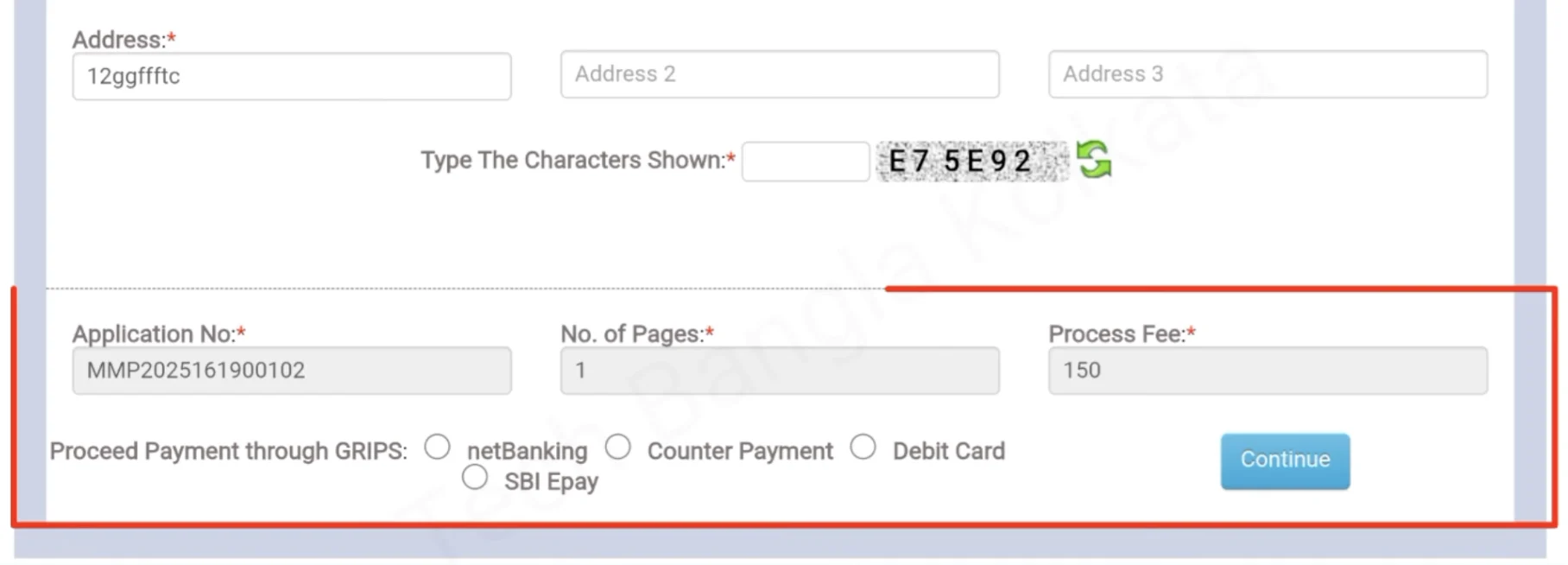
Save your Application Number and GRN. After payment, you get both an Application Number and a GRN (Government Reference Number). Write down or screenshot both of these immediately. You need them to download the map once it’s ready.
How to Download Your Mouza Map After Payment
After you pay, the map doesn’t download immediately in most cases. The request goes to the BLLRO office for processing. Once it’s ready, you’ll be able to download it. Here’s how:
Log in to BanglarBhumi and go to Citizen Services → GRN Search.
Enter your Application Number and GRN number. Solve the captcha and click Submit.
If the map is ready, a Download button will appear. Click it and save the PDF.
If no download button appears yet, it means processing is still happening. Check back after 24 to 48 hours.
Alternatively, you can also go to Citizen Services → Service Delivery → Application Receipt/Reprint, select Plot Map or Mouza Map as the request type, and enter your Application Number to download.
Video Tutorial
How Long Does the Mouza Map Take to Process?
In most cases the map is available for download within 24 to 72 hours after payment. Sometimes it happens faster — same day. Occasionally for certain remote areas it takes a bit longer, but rarely more than a week.
If it’s been more than 3–4 days and still nothing, don’t assume it’s lost. Log in and check GRN Search first. If the payment shows as successful but the map still isn’t there after a week, raise a Public Grievance on BanglarBhumi or contact your nearest BLLRO office with the application number.
Can You Search by Plot Number Directly?
Yes — this is actually one of the most useful features. When you’re in the map preview window, there’s a search box where you can type your plot number (Dag number). The map will highlight or zoom to that specific plot so you can see exactly where your land sits within the Mouza.
This is incredibly helpful if the Mouza has hundreds of plots and you need to find yours quickly. Just enter the LR or RS plot number depending on which map type you chose — and the system will locate it for you.
What if Your Mouza Map is Not Available on BanglarBhumi?
If the portal shows no map for your Mouza, it doesn’t mean the map doesn’t exist. It just means it hasn’t been digitized and uploaded yet. In this situation you have two options:
The digitization work is ongoing across West Bengal. What’s not available today online might be uploaded in the next few months. Worth checking again periodically if you’re not in a hurry.